My Calendar
My Calendar shows your scheduled WCA and adjudication events, including hearings, mediations, and other proceedings, in a calendar view. Use it to see when and where you need to appear.
Use Month view to see all hearings and mediations at a glance. Switch to Day or Week for a specific date.
Opening My Calendar
From the left navigation menu, click My Calendar.
Step 1. Log in to the ECF portal. The Dashboard opens showing your filings and cases.
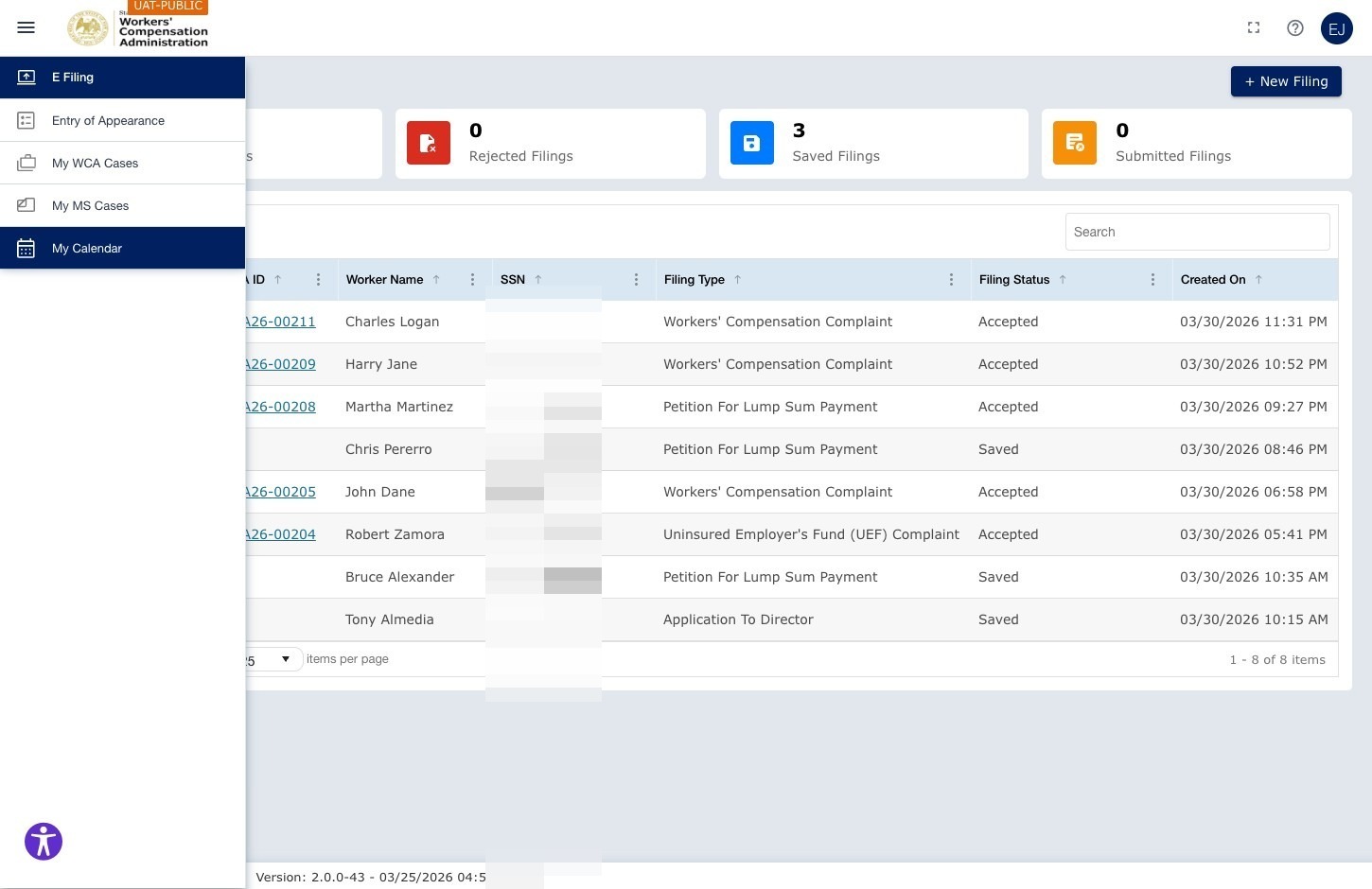
Step 2. Click My Calendar in the left navigation menu.
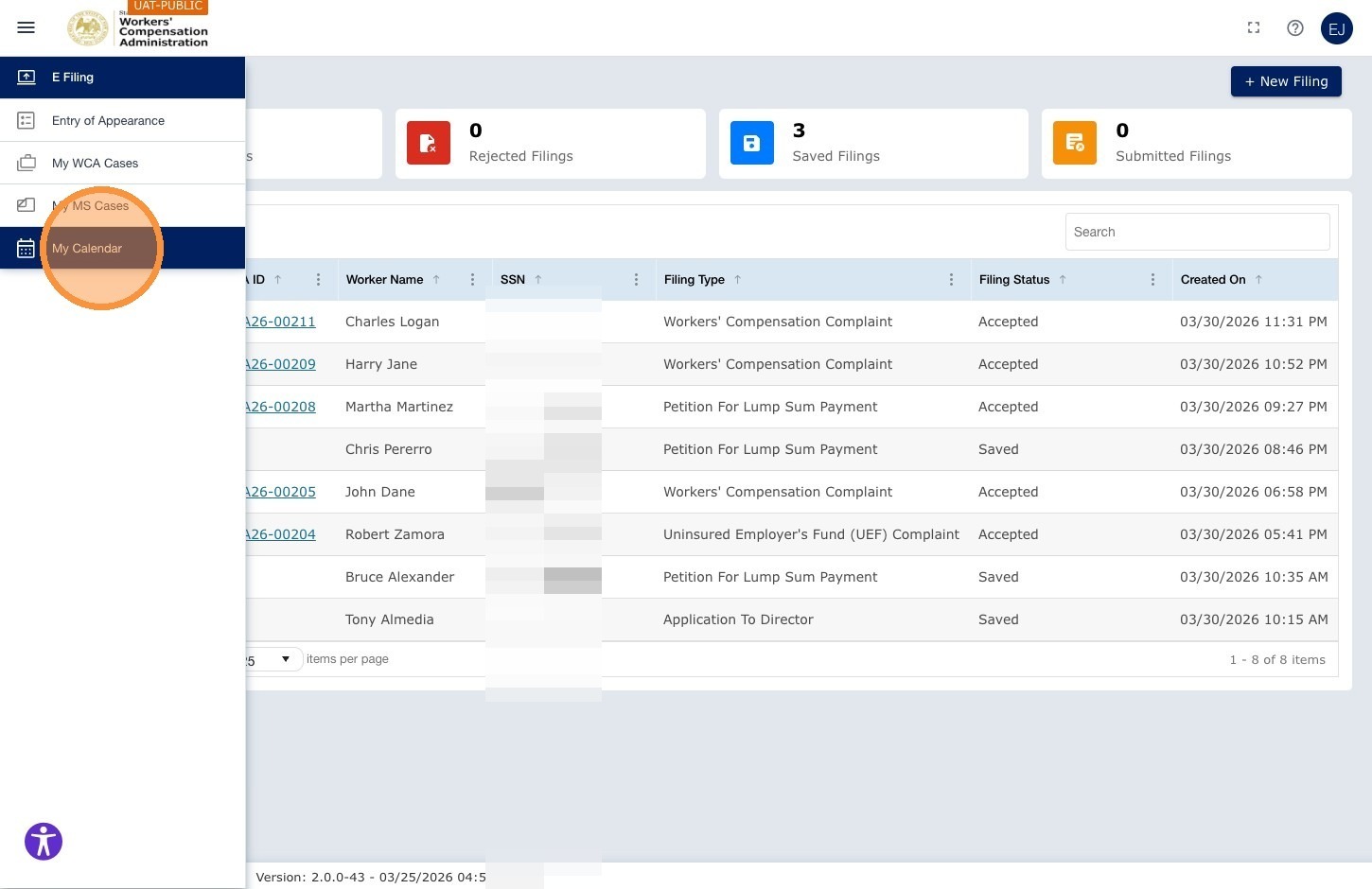
The Calendar View
The default view is Month, which shows a monthly calendar with all scheduled events.
Step 3. Date display — Shows the period you are viewing, such as October 2025. Use the Day, Week, and Month controls to switch views. Use the ◄ ► arrows to move between periods, or click Today to return to the current date.
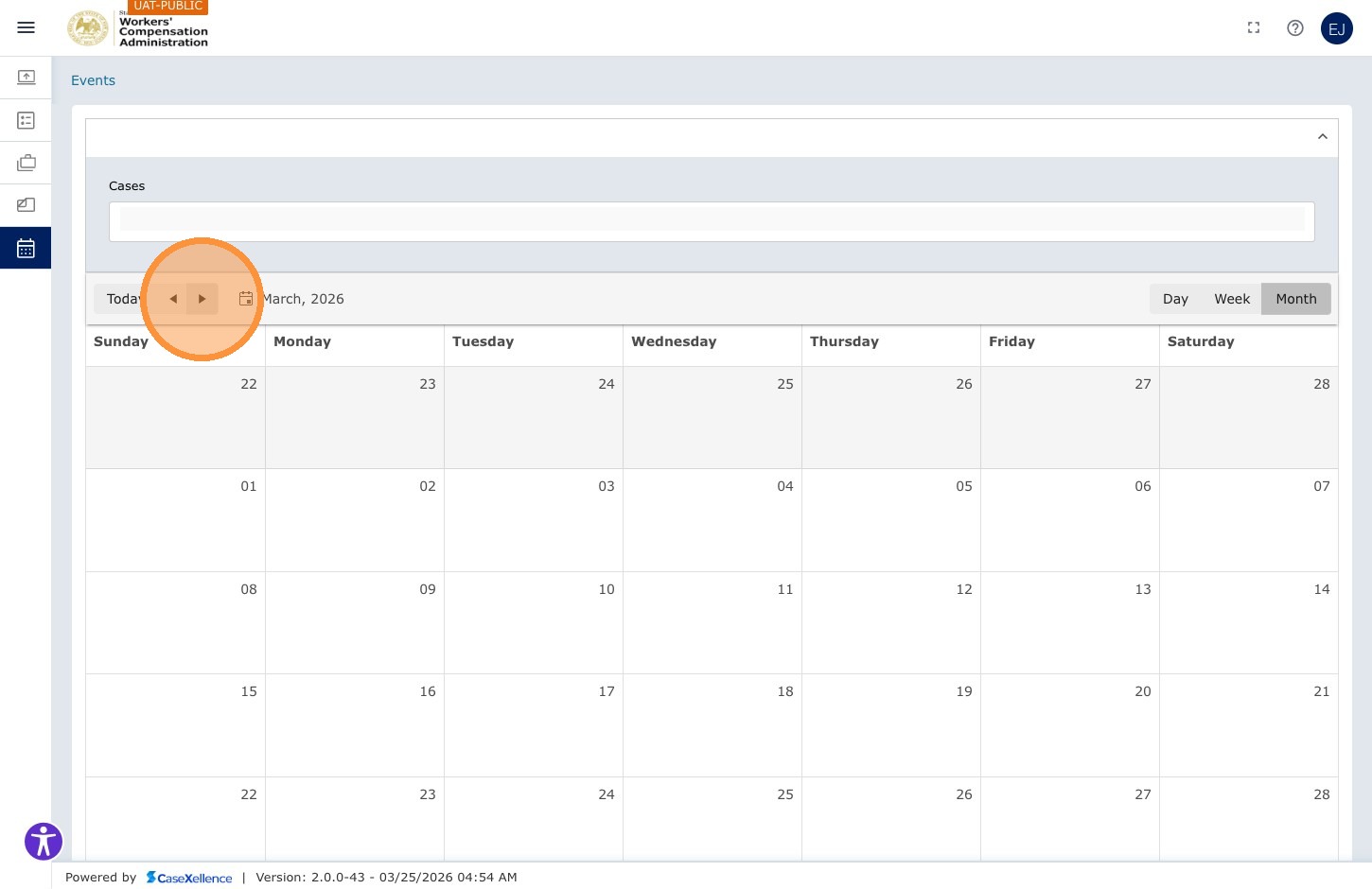
Calendar Controls Reference
| Control | Description |
|---|---|
| Today | Jump to today's date in the current view |
| ◄ ► | Move back or forward by one day, week, or month depending on the active view |
| Day | All events for a single selected day |
| Week | Events for the selected week |
| Month | Default — monthly calendar with all scheduled events |
| Event Filter | Filter displayed events by time range or event type |
Event blocks
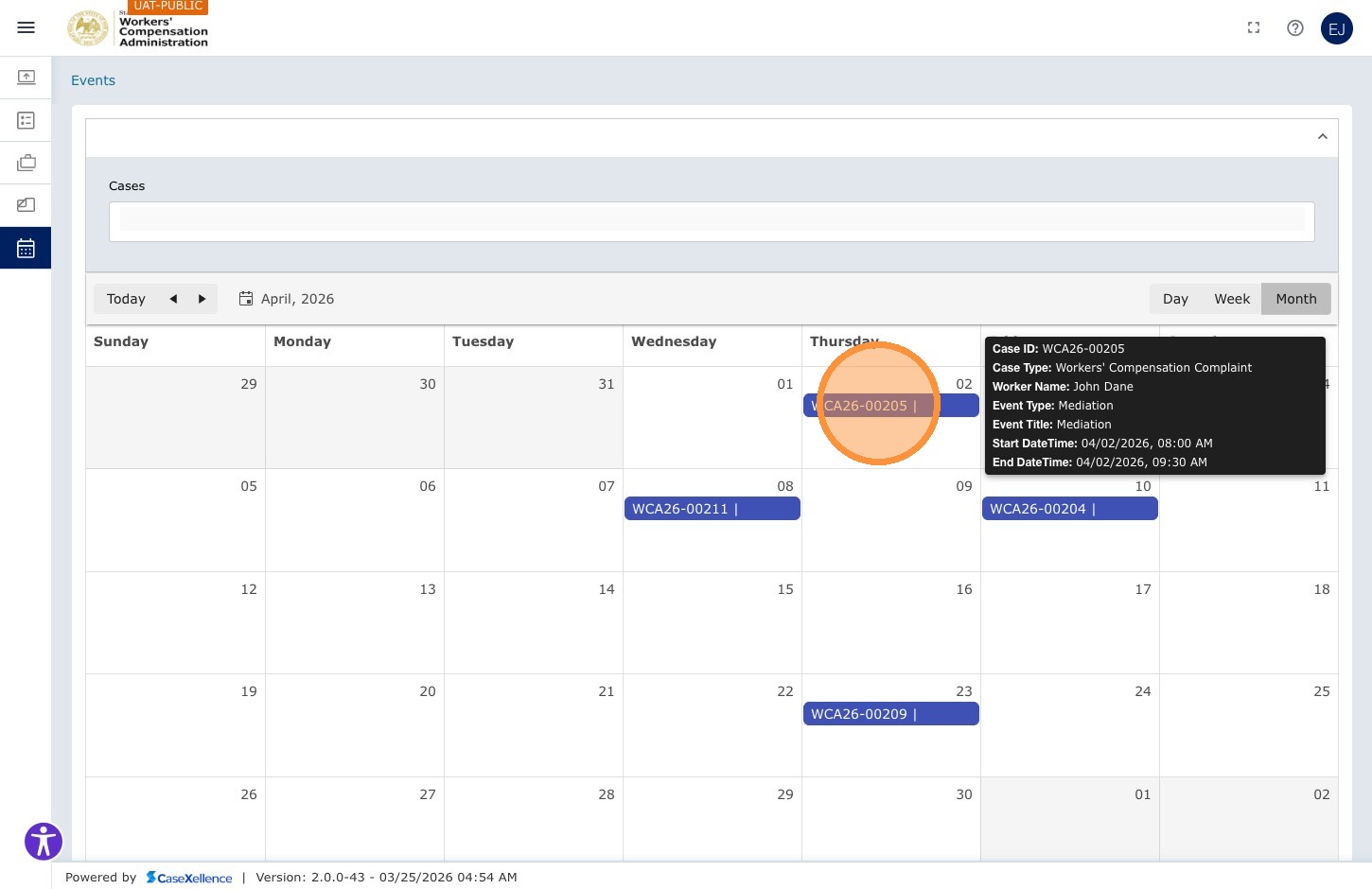
Each event block shows:
- WCA Case Number — the case the event belongs to
- Worker name
- Event type, such as a hearing or mediation
- Time
Events are color-coded, typically in blue. Use the view and navigation controls to find the date you need.
Navigating to a Case From the Calendar
You can click any event on the calendar to navigate directly to that case and view its full details, pleadings, and event information.
Step 4. Click the event block on the calendar (e.g., WCA26-00205 | Mediation | John Dane) to open that case.
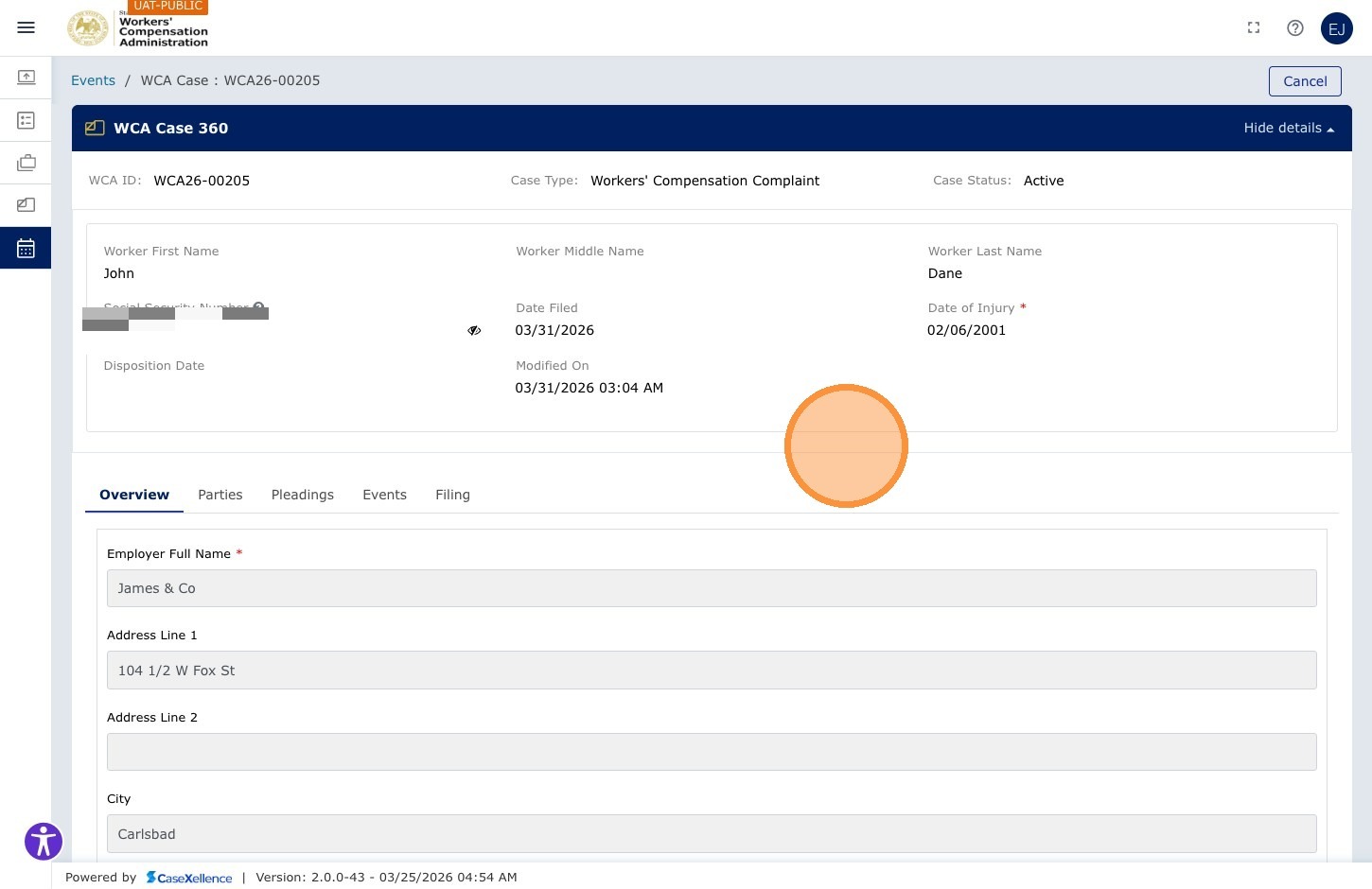
Step 5. The WCA Case 360 opens for the case associated with that event. From here you can review all case details — worker information, parties, pleadings, events, and filing history.
Important Notes
When using My Calendar, keep the following in mind:
-
Events appear after e-filing. An event appears only after the Clerk's Office has completed the e-filing of the related Notice of Hearing or Notice of Mediation Conference. Events that WCA staff create internally do not show until that notice is filed.
-
Adjudication events are view-only. Trial dates and other adjudication events appear on the calendar but cannot be rescheduled in the portal. Contact the relevant WCA bureau if you need to change an adjudication event.
-
Mediation events are interactive. You can reschedule a mediation or submit a Late Reset Request from the case: open the case from the calendar event, then use the Events tab. For the full workflow, see Mediation — Rescheduling.
-
Your calendar is case-specific. You only see events for cases where you are an active party. Events from other attorneys' or parties' cases are not visible to you.
See Also
Portions of this user guide were produced with assistance from artificial intelligence tools; all content was reviewed for accuracy before publication.