User Registration — Attorney or Representative
This guide explains how to register for an account in the ECF portal. It is intended for attorneys or representatives, including employers, carriers, registered agents, and TPAs. All new users must register through the portal and be approved by the WCA Clerk's Office before they can access the Electronic Case Filing System.
Who should register
| User type | Description |
|---|---|
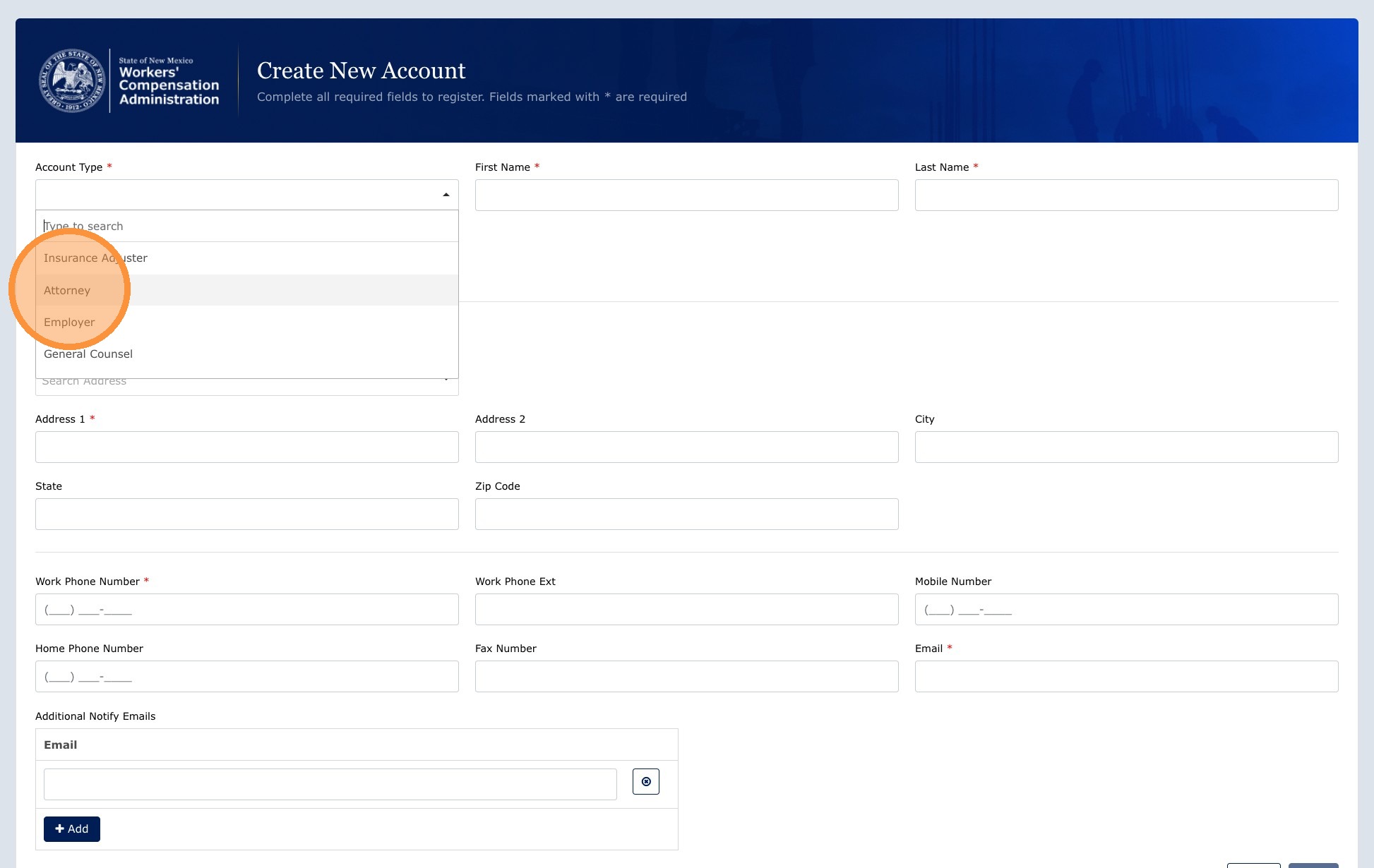
| Attorney | Attorneys who file complaints, petitions, or pleadings on behalf of workers or employers in WCA cases. |
| Employer | Employer representatives who need to view or respond to filings related to their employees. |
| Insurance Carrier | Insurance carrier staff who manage filings and case activity on behalf of insured employers. |
| Third Party Adjuster (TPA) | Third-party administrators acting on behalf of employers or carriers. |
| Insurance Adjuster | Adjusters who manage and respond to workers' compensation claims on behalf of a carrier or self-insured employer. |
| Uninsured Employer Fund | Representatives of the Uninsured Employer Fund who handle claims involving uninsured employers. |
| General Counsel | Legal counsel representing a party in WCA proceedings who need access to case filings and documents. |
| Healthcare Provider (HCP) | Medical providers or authorized representatives who file or respond to healthcare provider claims in WCA cases. |
How to register
Navigation: ECF Portal Landing Page → Create Account
1. Open the portal and start registration
- Go to the ECF portal (or the URL provided by WCA).
- Click Create Account on the landing page.

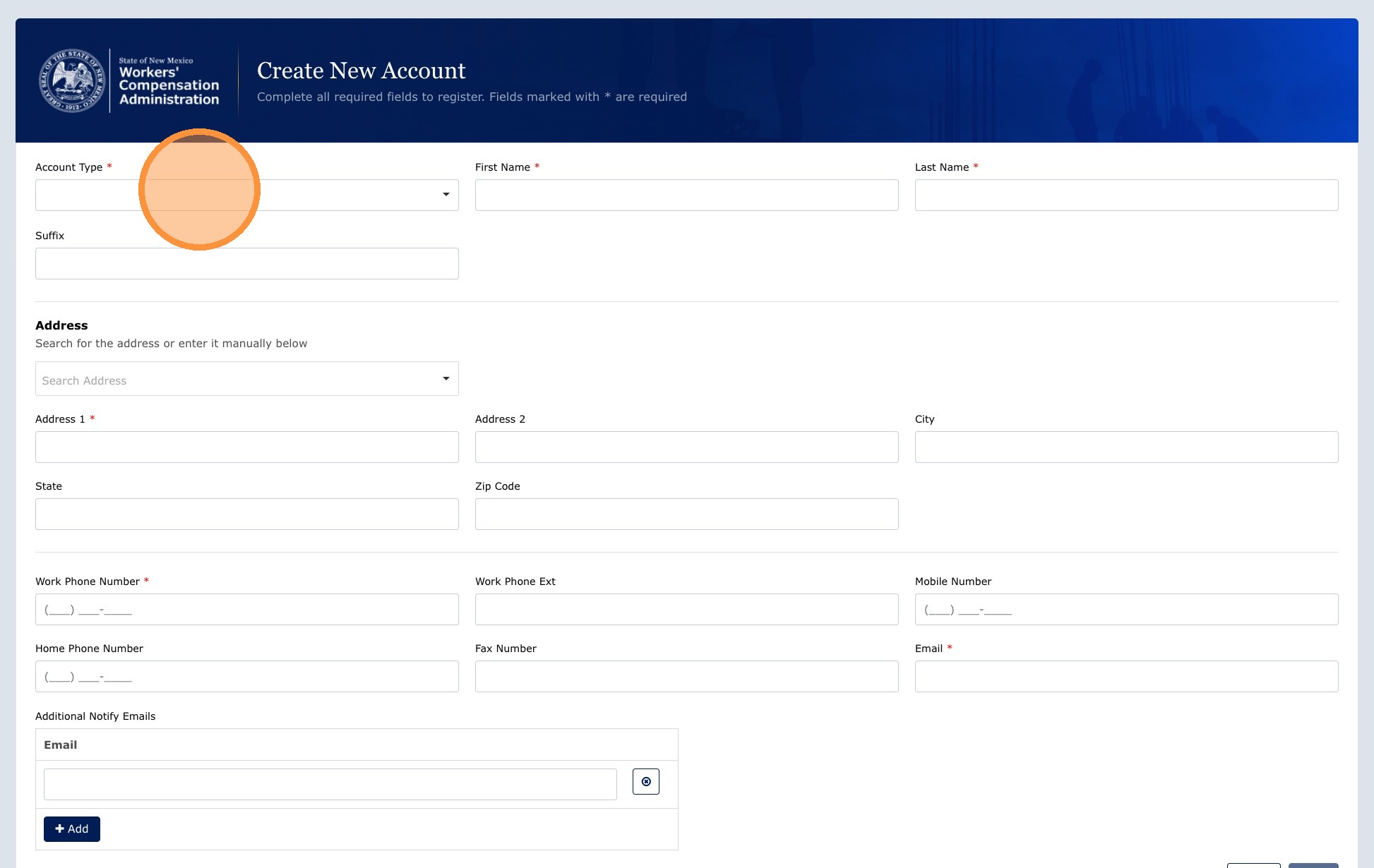
2. Select your user type
- Choose your User Type from the dropdown, such as Attorney, Employer, Carrier, Registered TPA, or another available option.
3. Complete the form and save
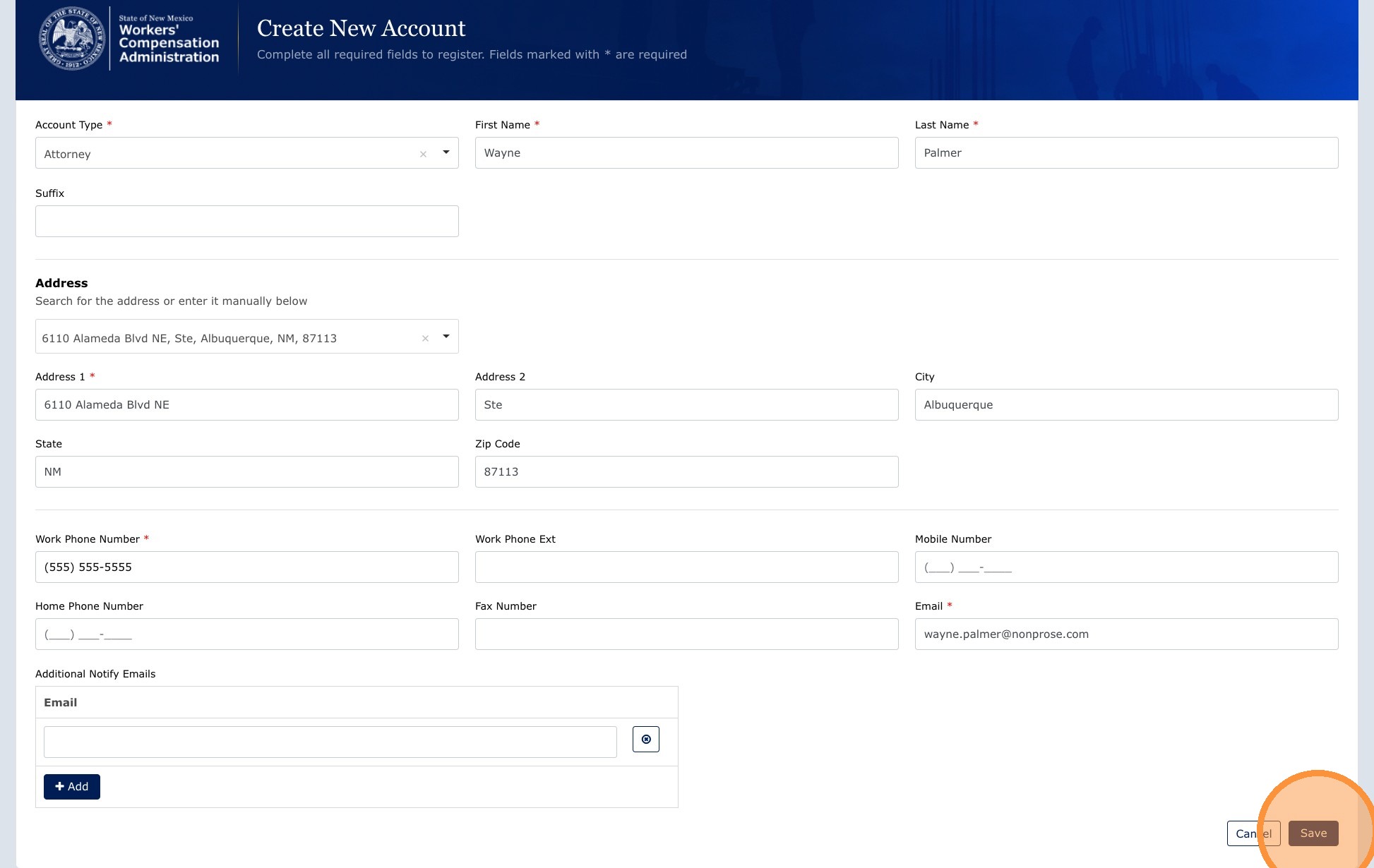
- Enter your full name.
- Enter your mailing address. As you type, the address field suggests valid addresses. Select the correct suggestion to fill in the full address automatically.
- Enter at least one phone number. A phone number is required. A fax number is optional.
- Enter your primary email address. This email address will be your username for signing in.
- Add any Additional Notify Email addresses for staff who should receive case notifications, such as paralegals or adjusters. Separate multiple email addresses with commas.
- Click Save to complete your registration.
What happens after you submit
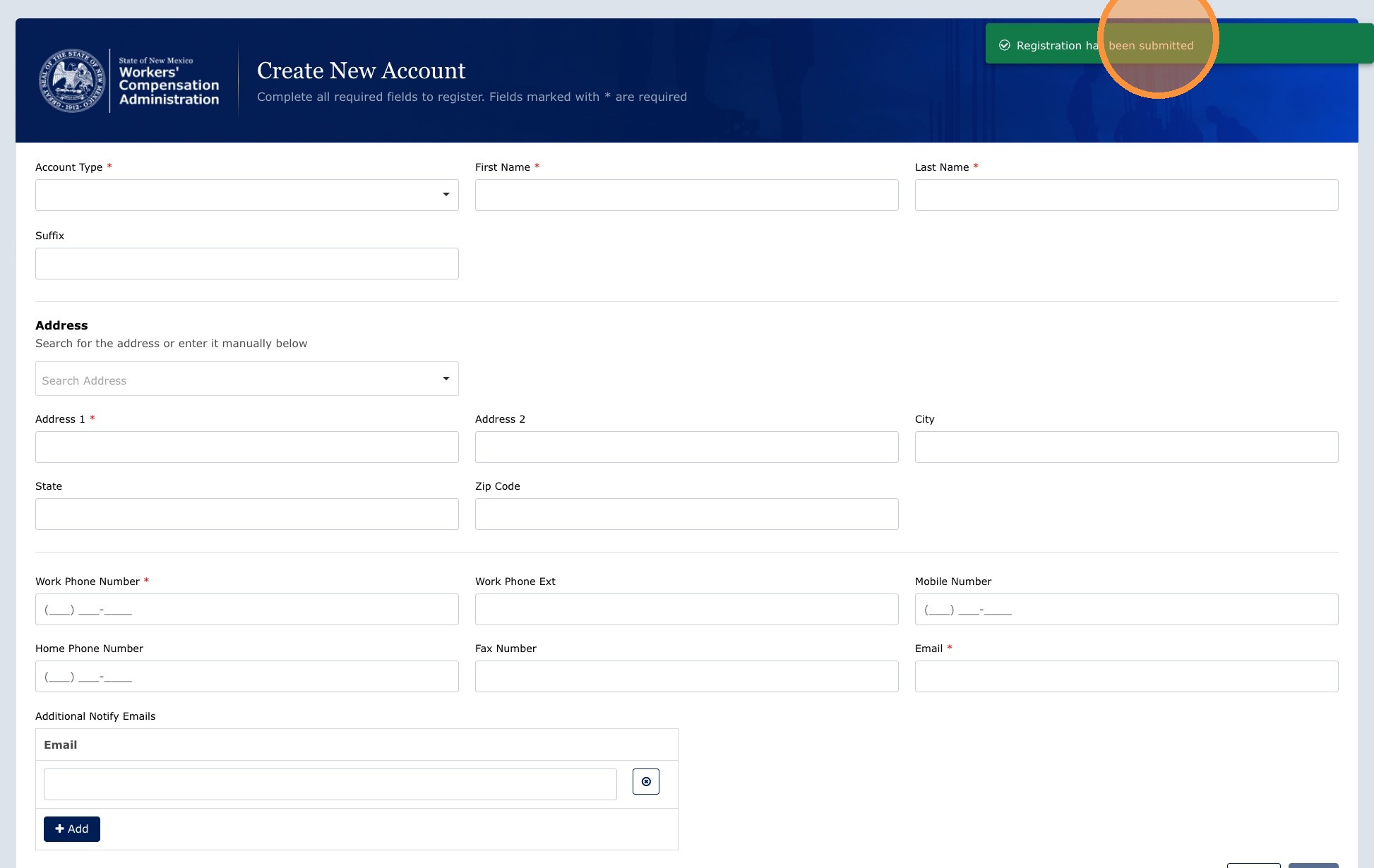
Your registration does not become active immediately. The WCA Clerk's Office reviews all new registrations before granting access.
| Stage | What happens |
|---|---|
| Confirmation Email | You will receive an email confirming your registration was received. |
| Clerk Review | The Clerk's Office reviews your registration details and either approves or rejects the request. |
| Approval Email | If your registration is approved, you will receive an email with a link to set your password. Use the link and follow the prompts to create your password, then sign in. |
| Rejection Email | If your registration is rejected, you will receive an email explaining why. Correct the issue and resubmit your registration. |
Set up your password
- Open the approval email from WCA.
- Click the password setup link in the email.
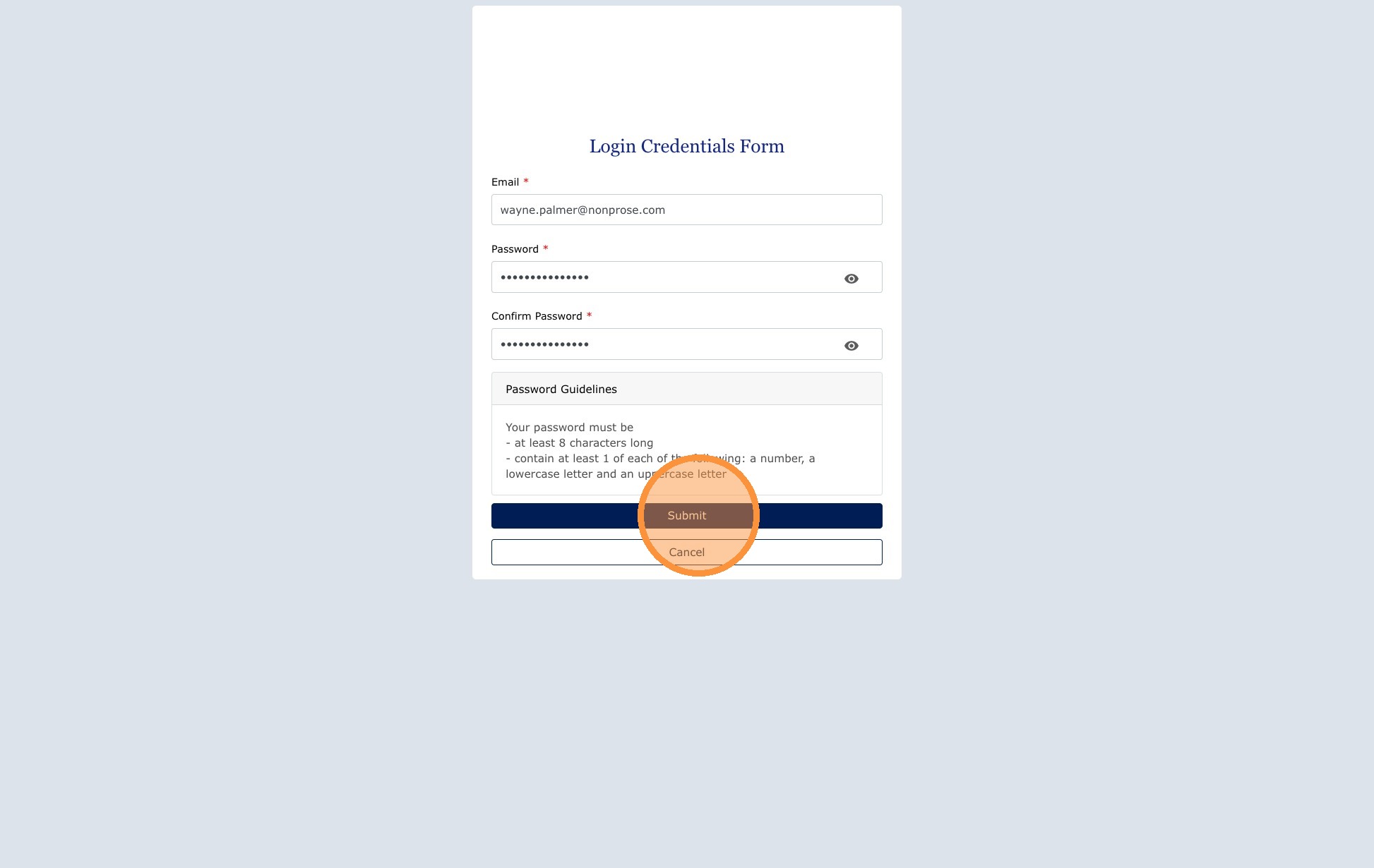
- Create a password that meets WCA's password requirements. Follow the on-screen instructions.
- Click Submit. - Done
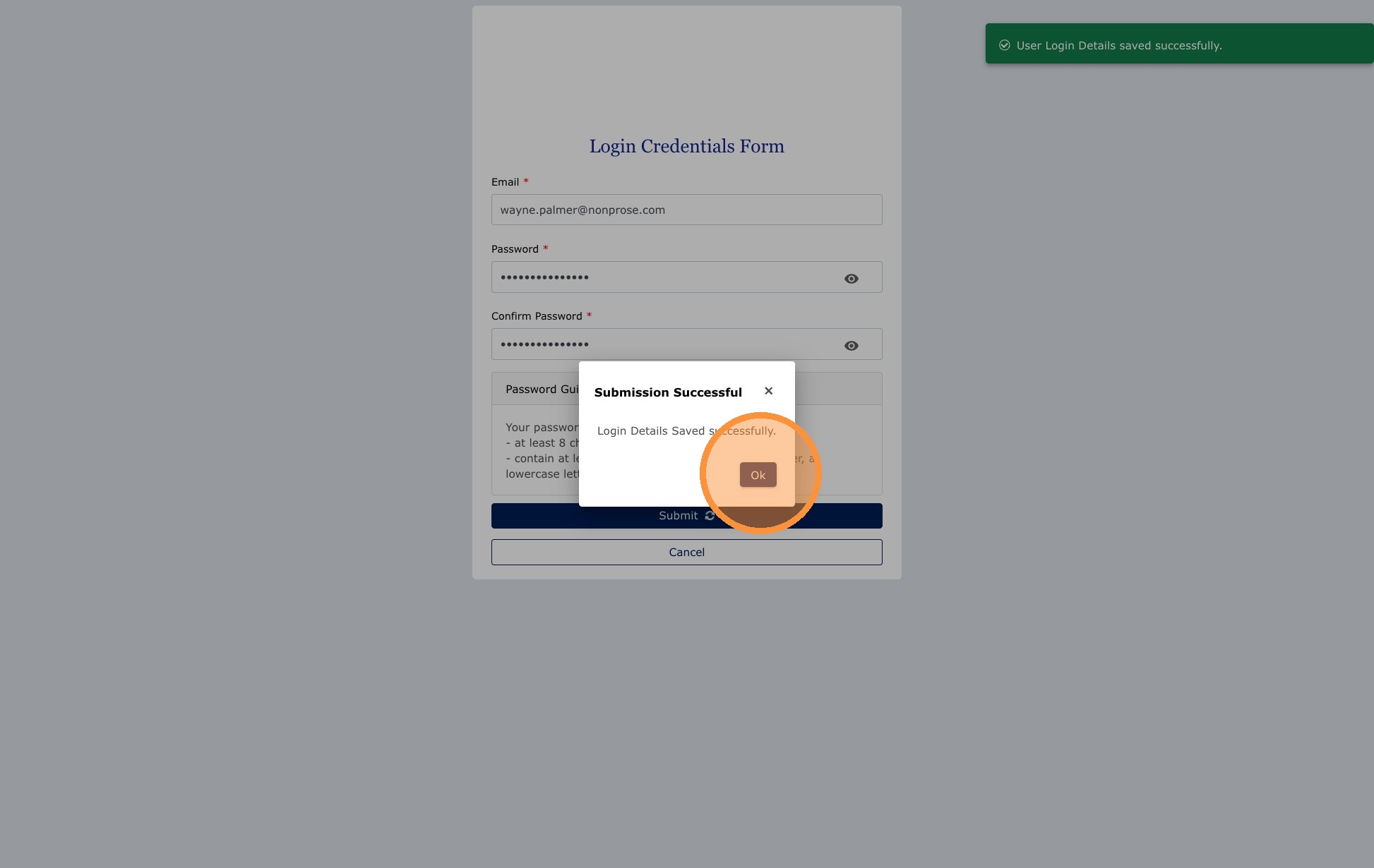
- Click OK on the confirmation screen.
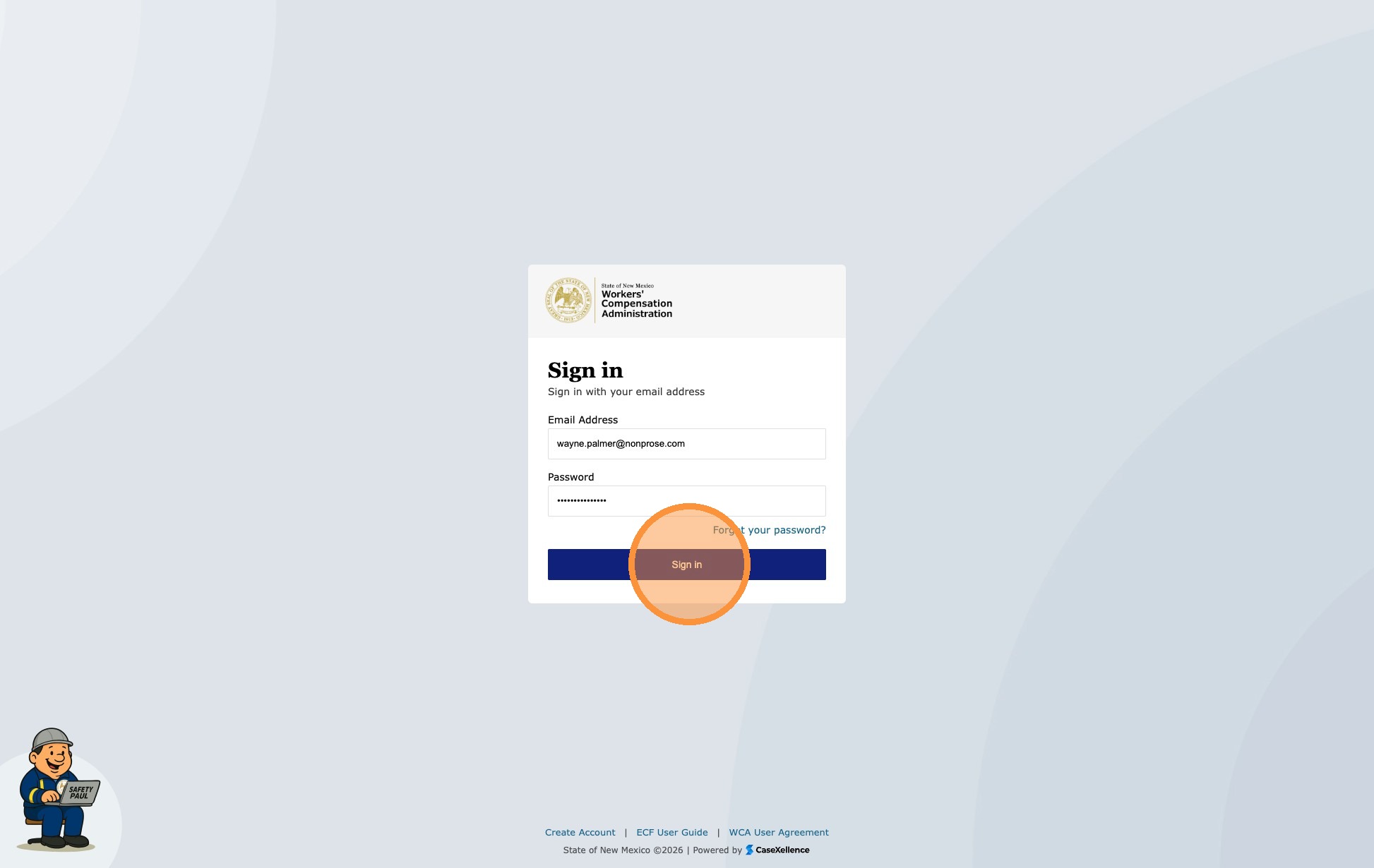
- You will be redirected to the login page.

- Enter your registered email address and new password, then click Sign In.
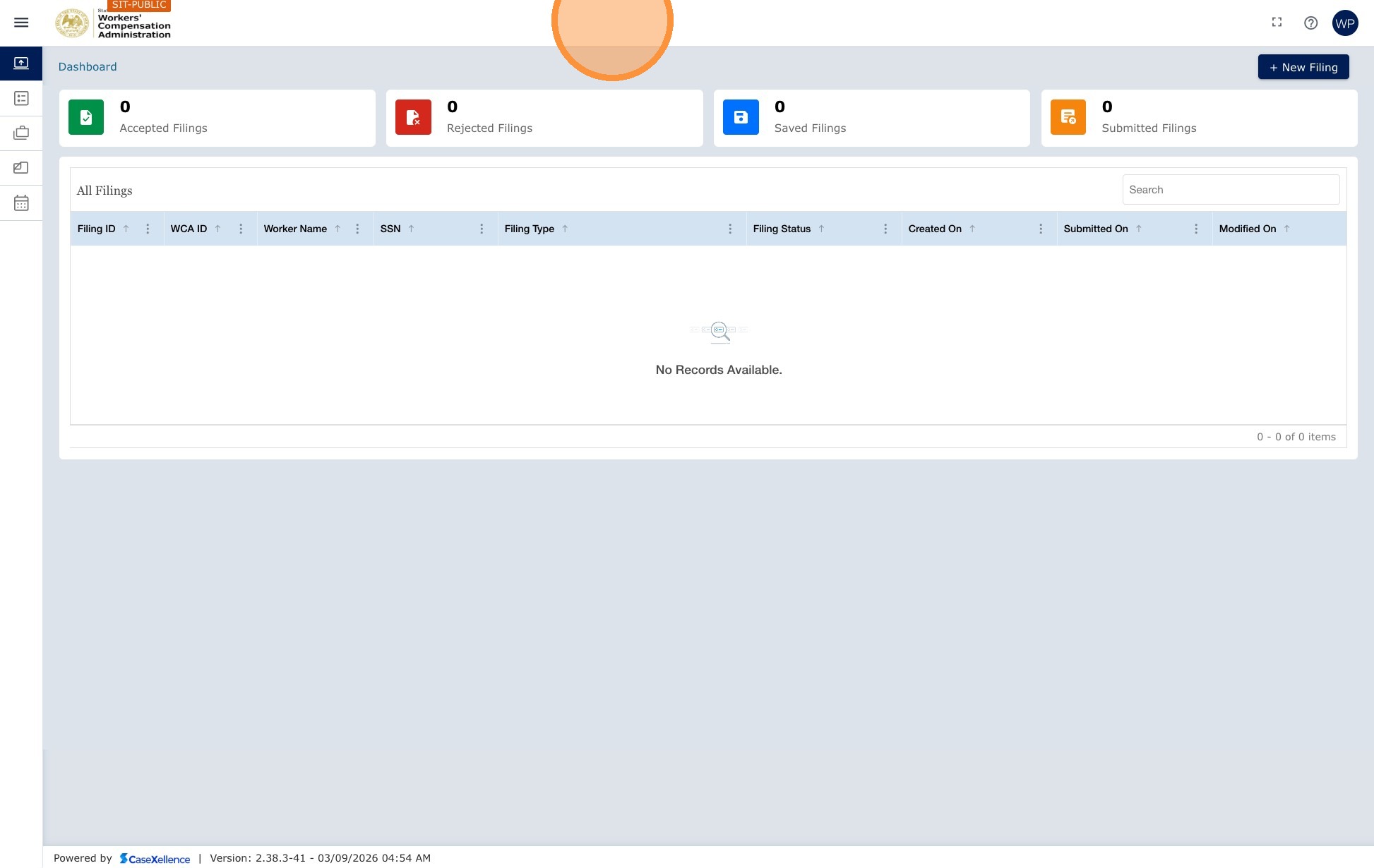
Note: After you log in for the first time, your dashboard will be empty. You will not see any filings or cases yet. This is expected. Create your first filing or submit an Entry of Appearance to join an existing case.
Next: Dashboard Views and Menu Items · User Profile Update · Contact Us
Portions of this user guide were produced with assistance from artificial intelligence tools; all content was reviewed for accuracy before publication.