User Profile Update
Your user profile stores your contact information, notification email addresses, and signature. Keeping your profile up to date helps ensure that case notifications reach the right people and that your letters and filings are signed correctly.
After you log in, you can update your profile by adding additional notification email addresses, editing editable contact fields such as fax, and uploading or changing your signature. The guide below walks you through opening My Profile, making updates, and saving your changes.
Screenshots in this guide may show a non-production environment label in the application header (for example a deployment or test-site name). Your production or UAT portal may look different; follow the controls and labels shown in your live portal.
Access your profile
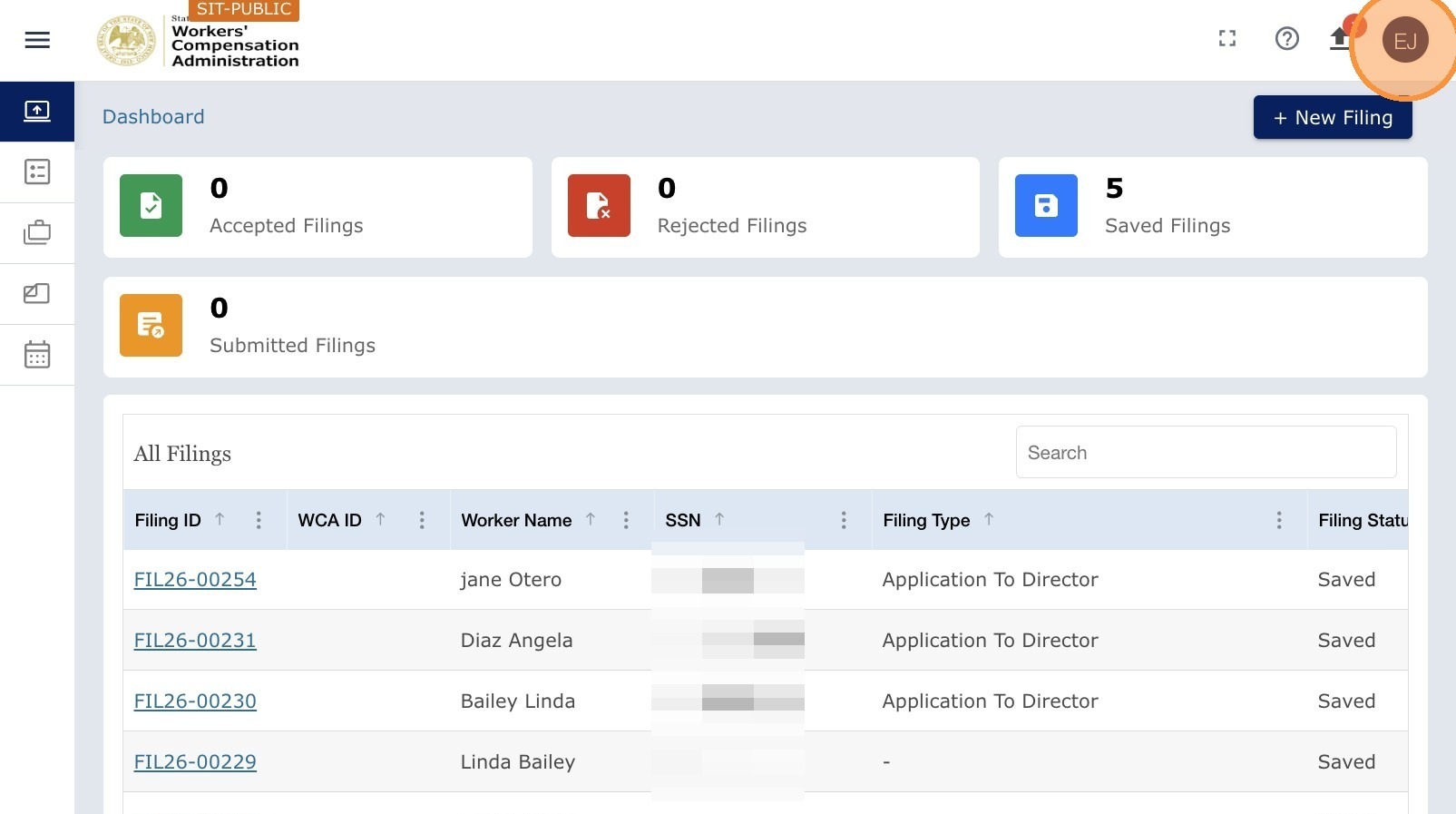
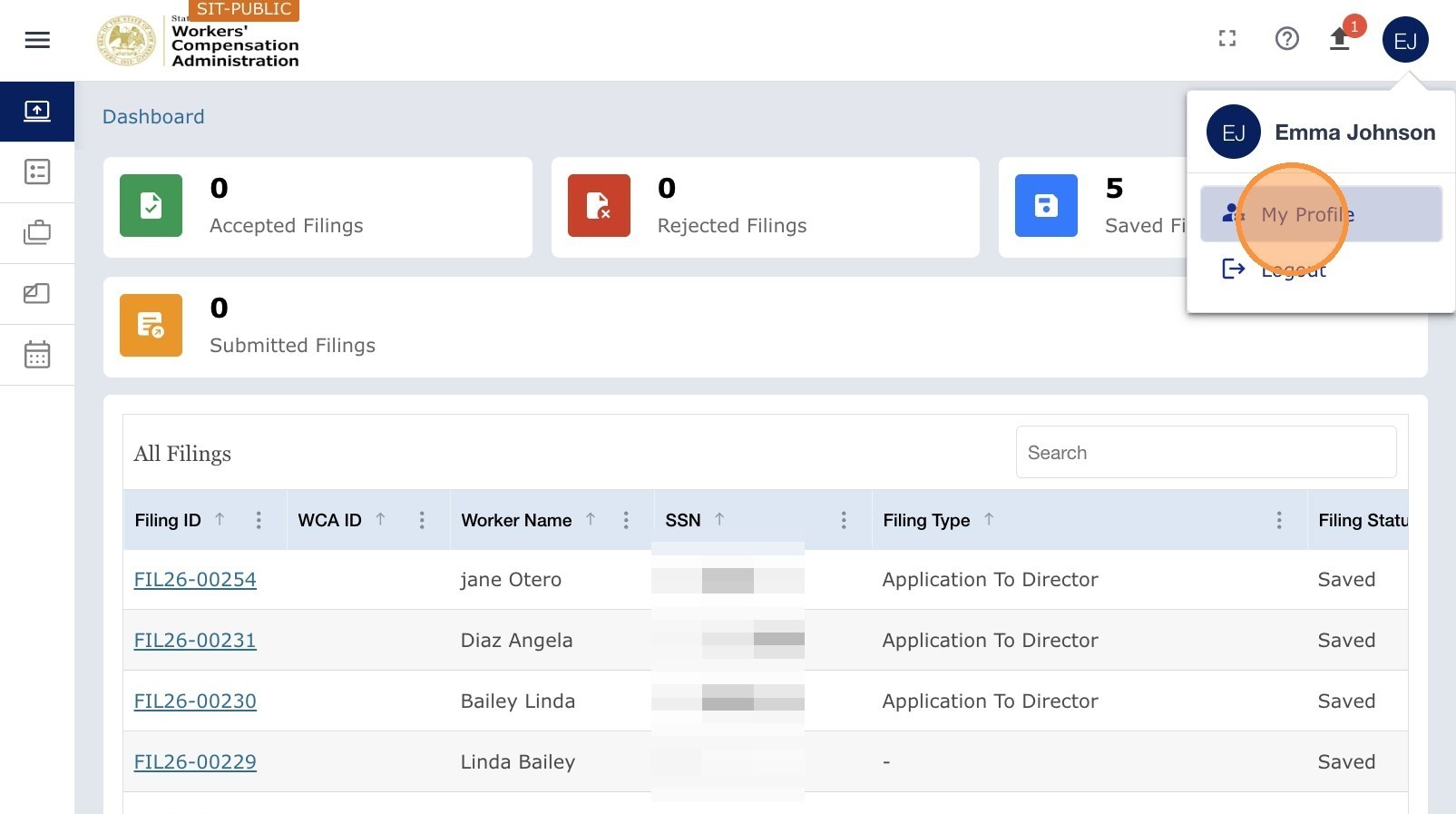
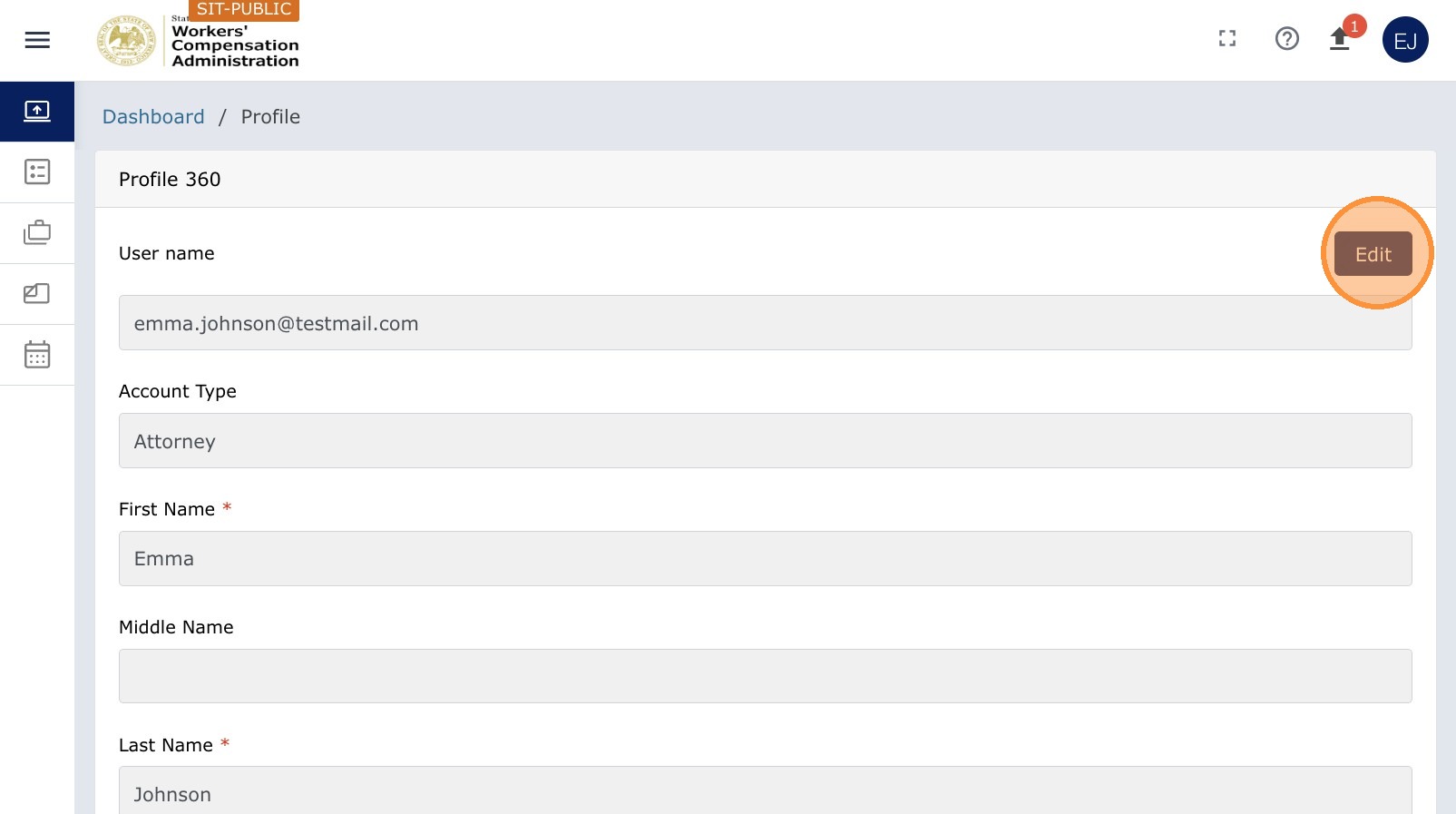
Navigation: Top-right corner → profile icon or your name → My Profile
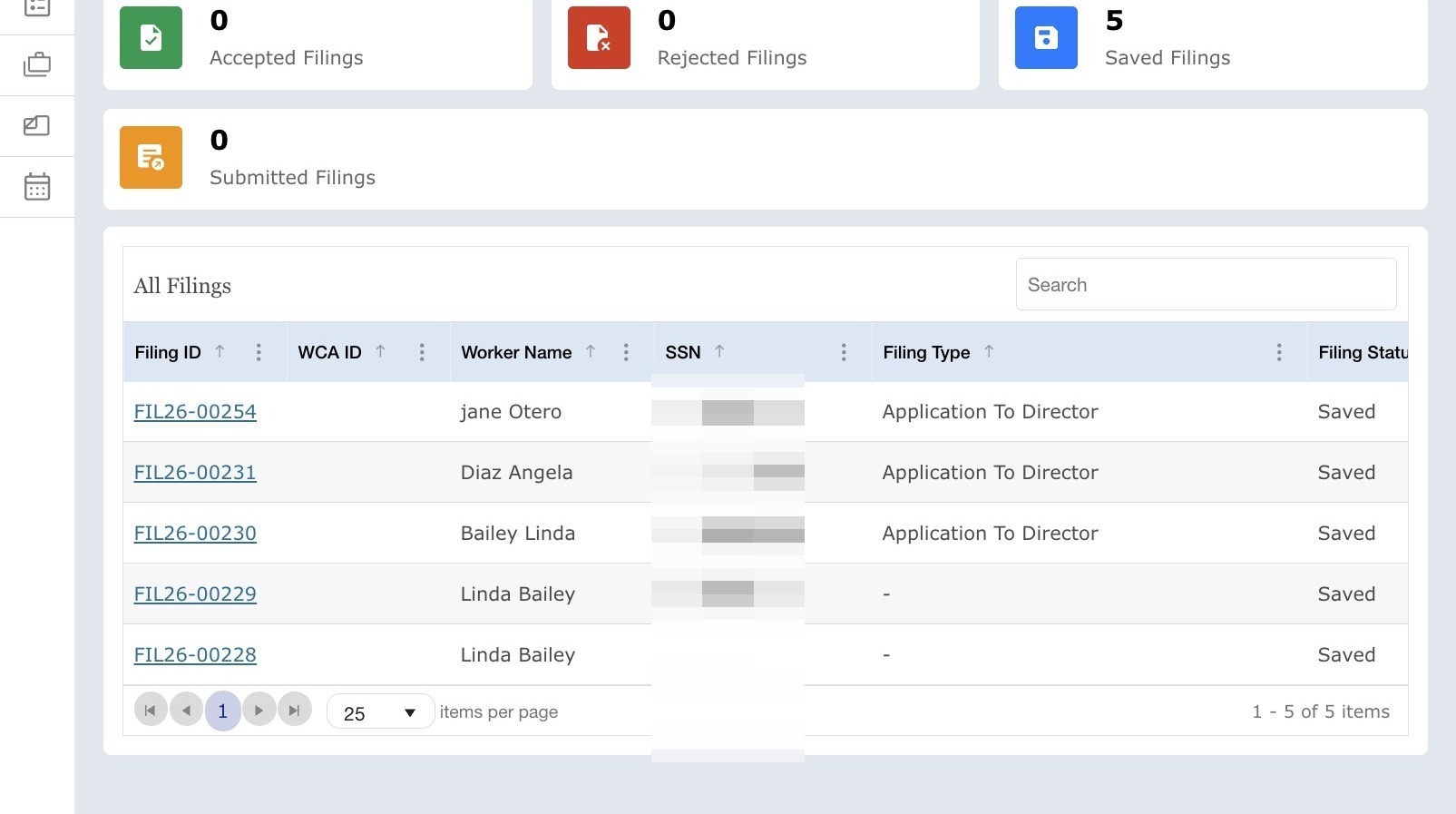
- Once you are logged in to the portal, you will land on the dashboard.
- Click the profile icon in the top-right corner to open your account menu.
- Select My Profile.
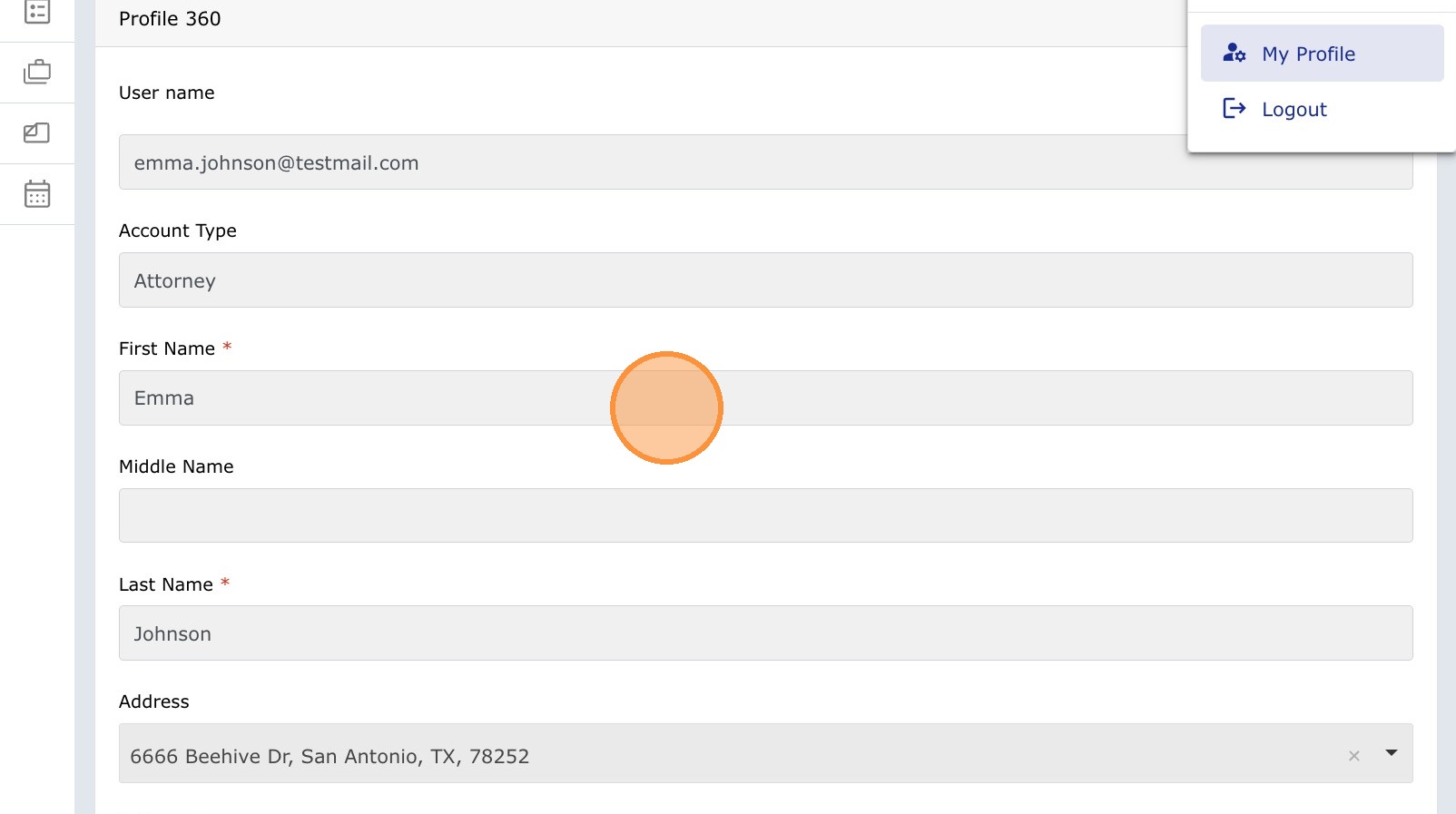
Important: Some profile fields are read-only. You can update editable fields such as Fax, Additional Notify Emails, and your signature.
Update your information
- Click your name or the profile icon in the top-right corner of the screen.
- Select My Profile from the dropdown menu.
- Update any editable fields, such as your mailing address, phone number, or fax number.
- To add or remove notification email addresses, edit the Additional Notify Emails field. Separate multiple email addresses with commas. These recipients will receive all case-related email notifications.
- Save your changes.
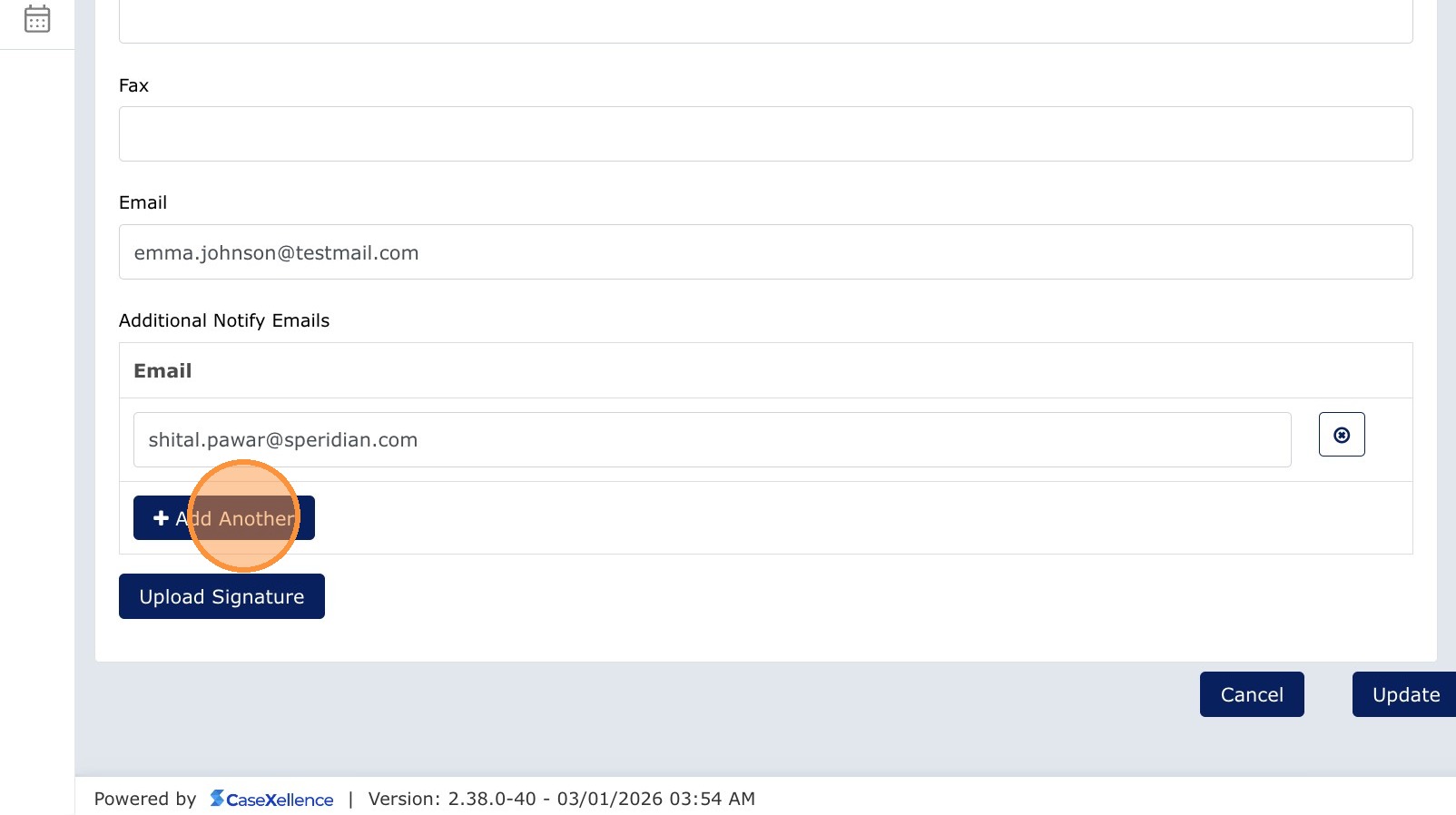
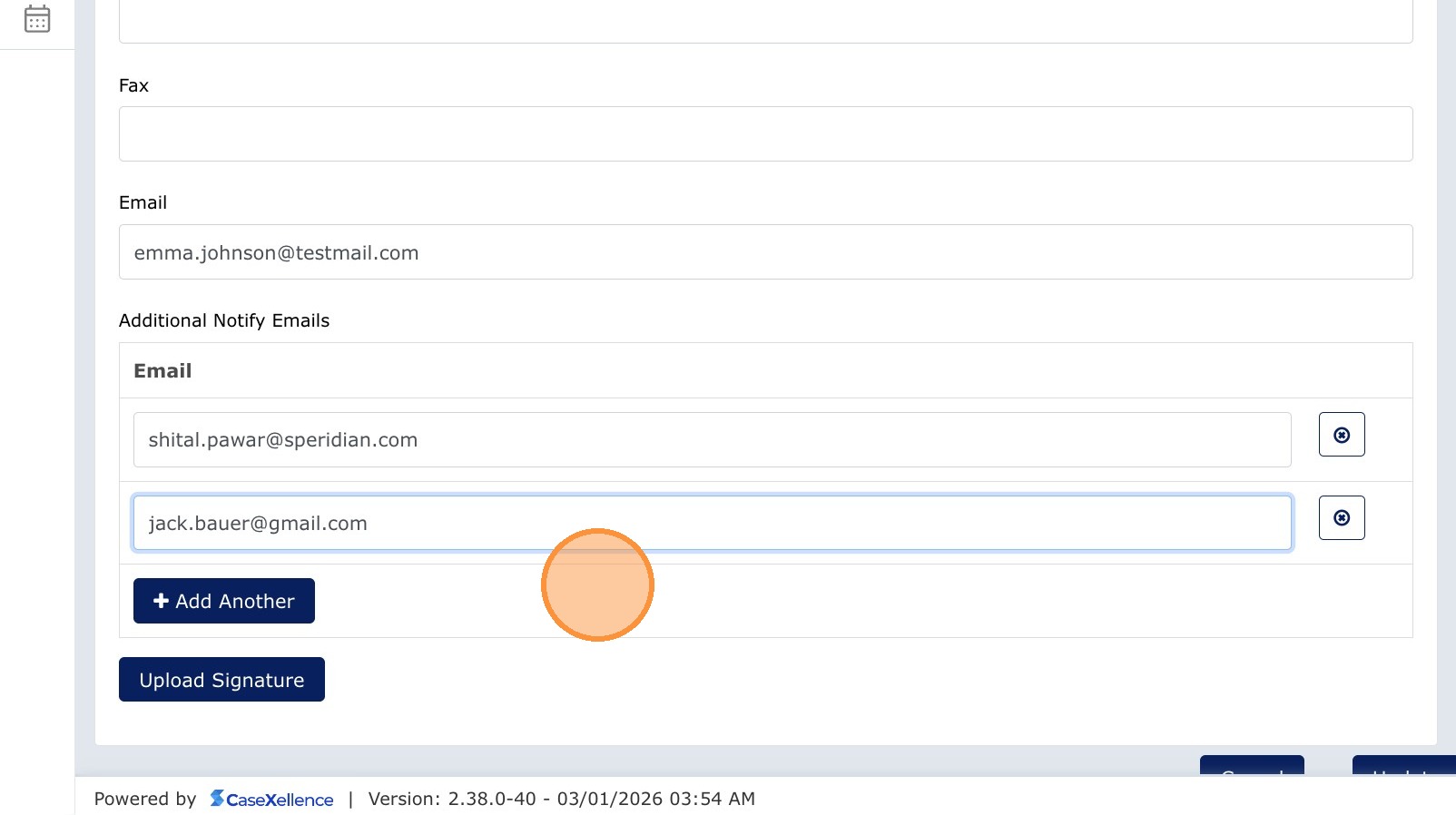
Notifications and status emails are sent to all email addresses associated with your account.
Add your signature
Your signature is applied to filings and letters generated through the portal. Set it up once in your profile, and it will be available whenever you generate a document.
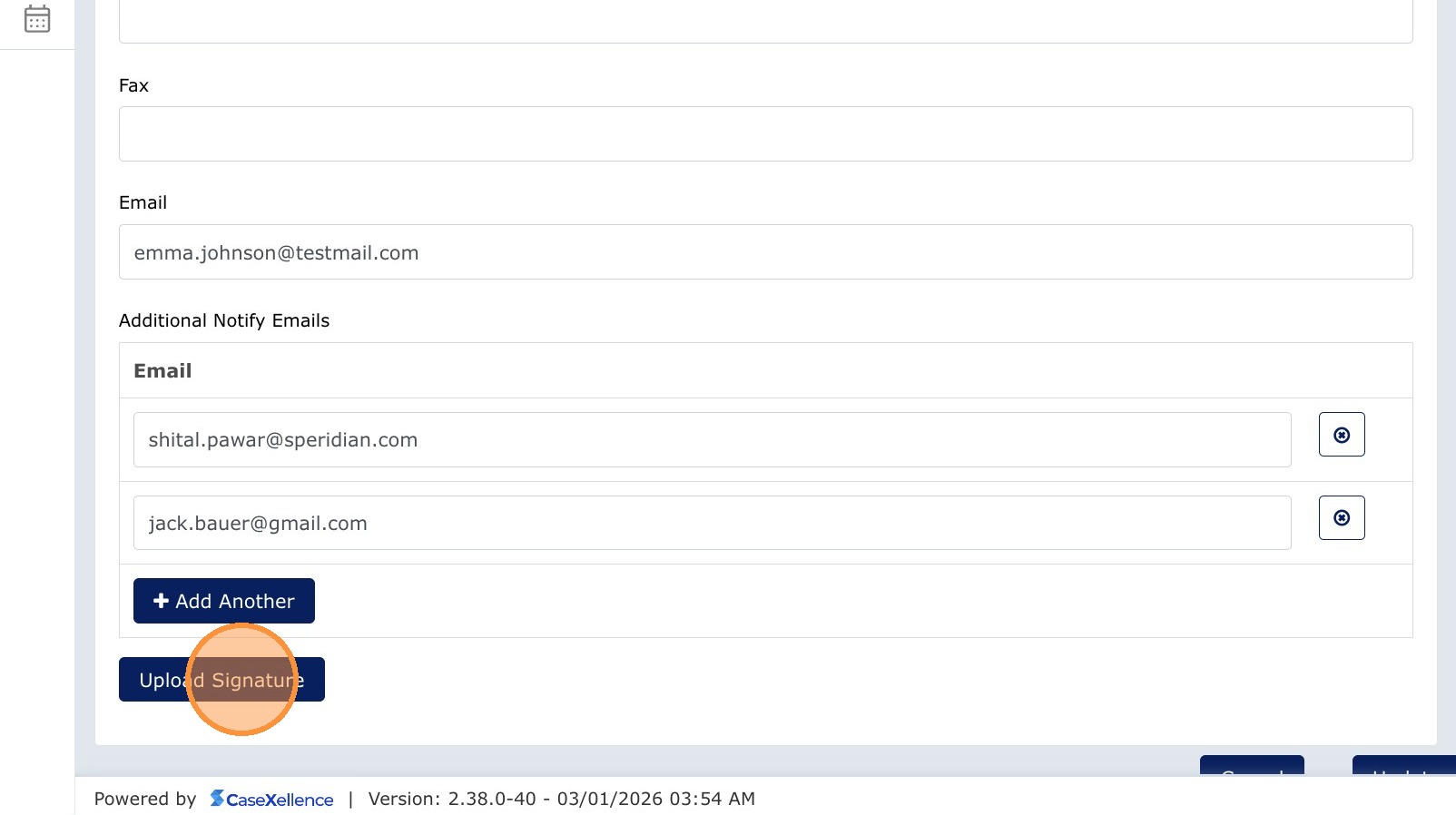
Scroll to the Signature section at the bottom of the My Profile page and choose one of these methods:
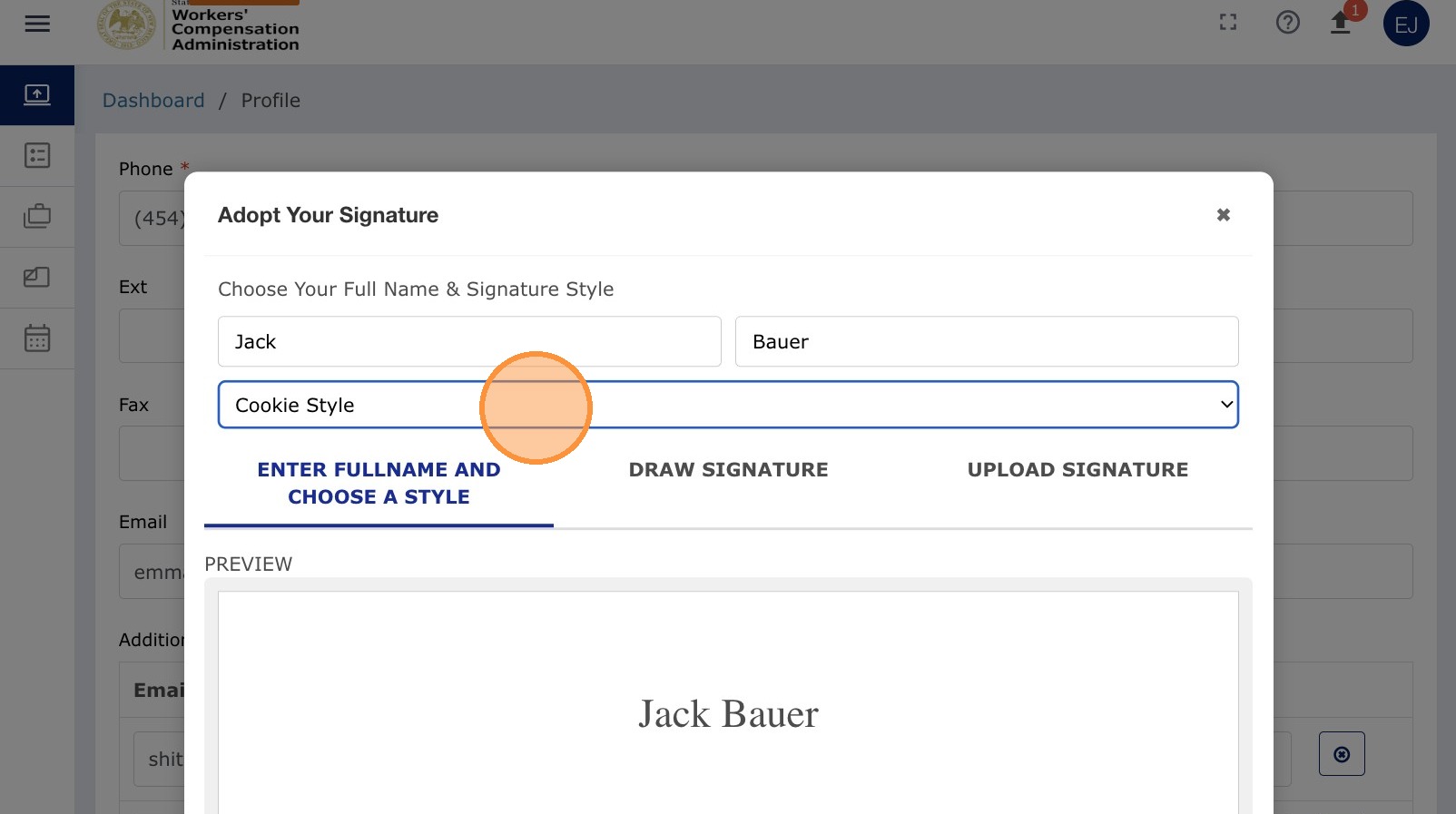
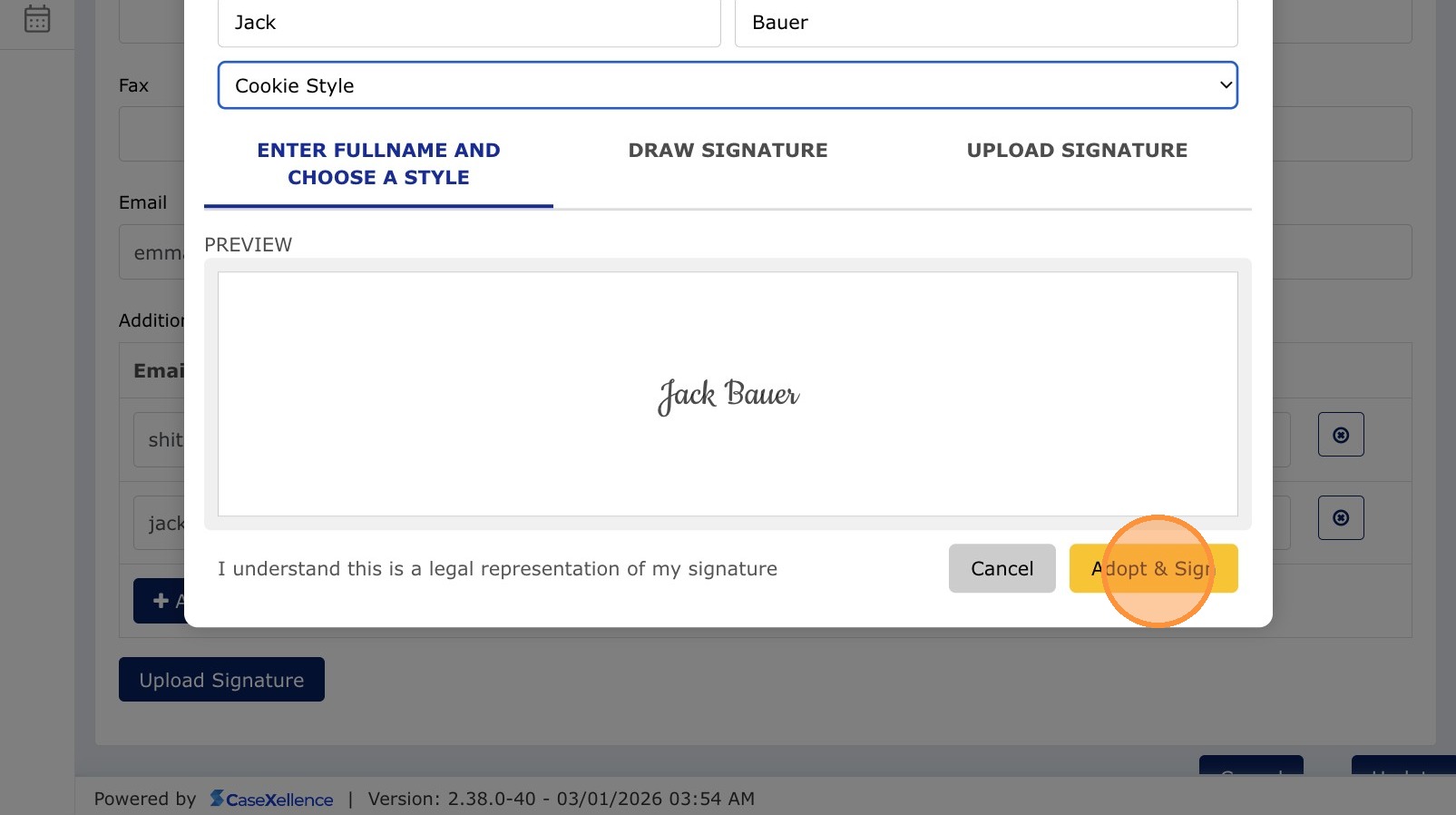
- Full name and style — Enter your name and choose a signature style, such as Cookie Style.
- Draw Signature — Click Draw Signature and use your mouse or touchscreen to sign directly in the portal. This is useful if you do not have a saved signature image.
- Upload image — Click Upload Signature and select a saved image file of your signature in JPG or PNG format. This is the recommended method for a professional appearance. You may also include your letterhead, firm name, or address in the image.
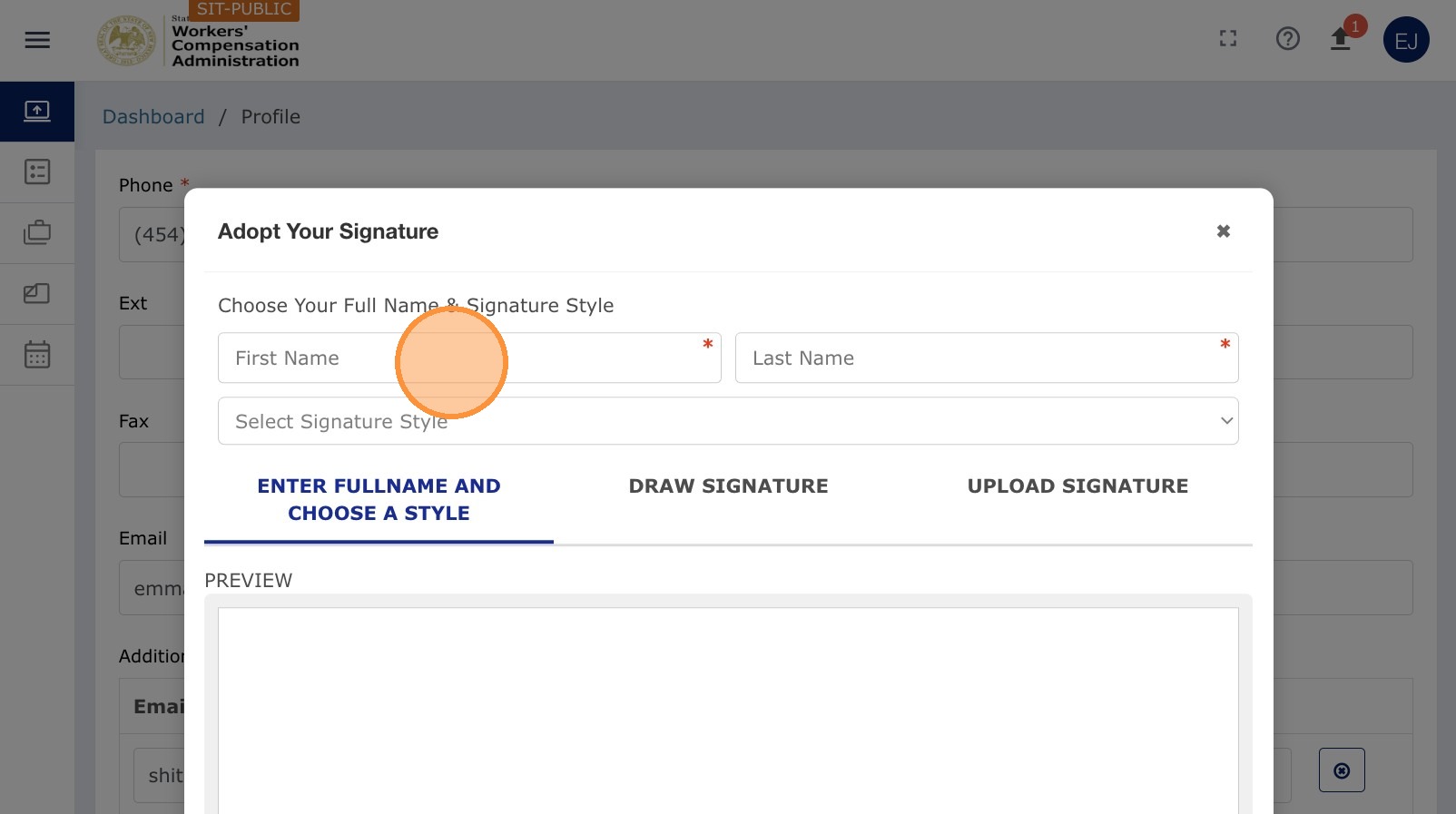
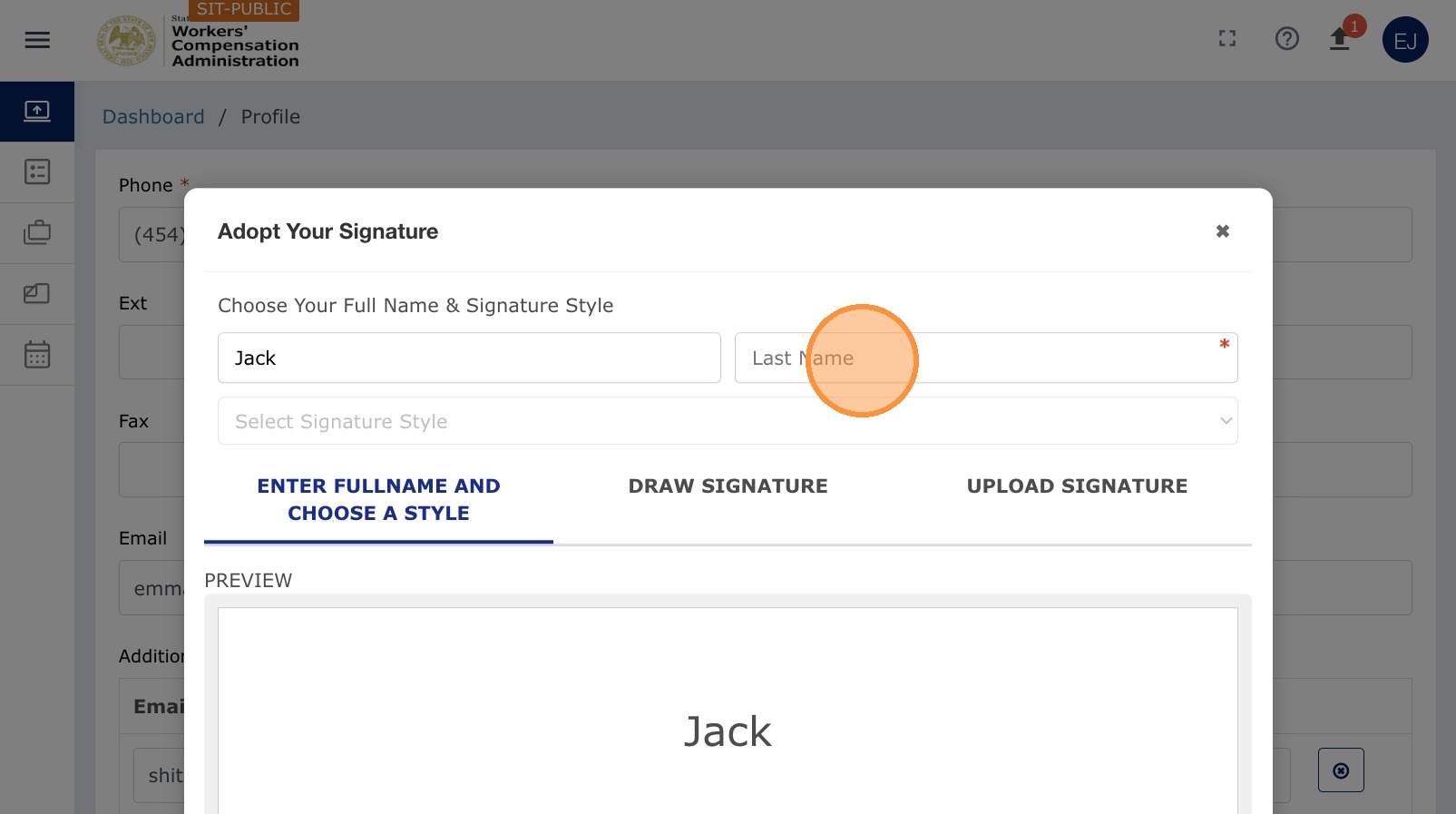
For Full name and style, enter your name, complete the Last Name field if needed, select a style such as Cookie Style, and then click Adopt & Sign.
Save your signature
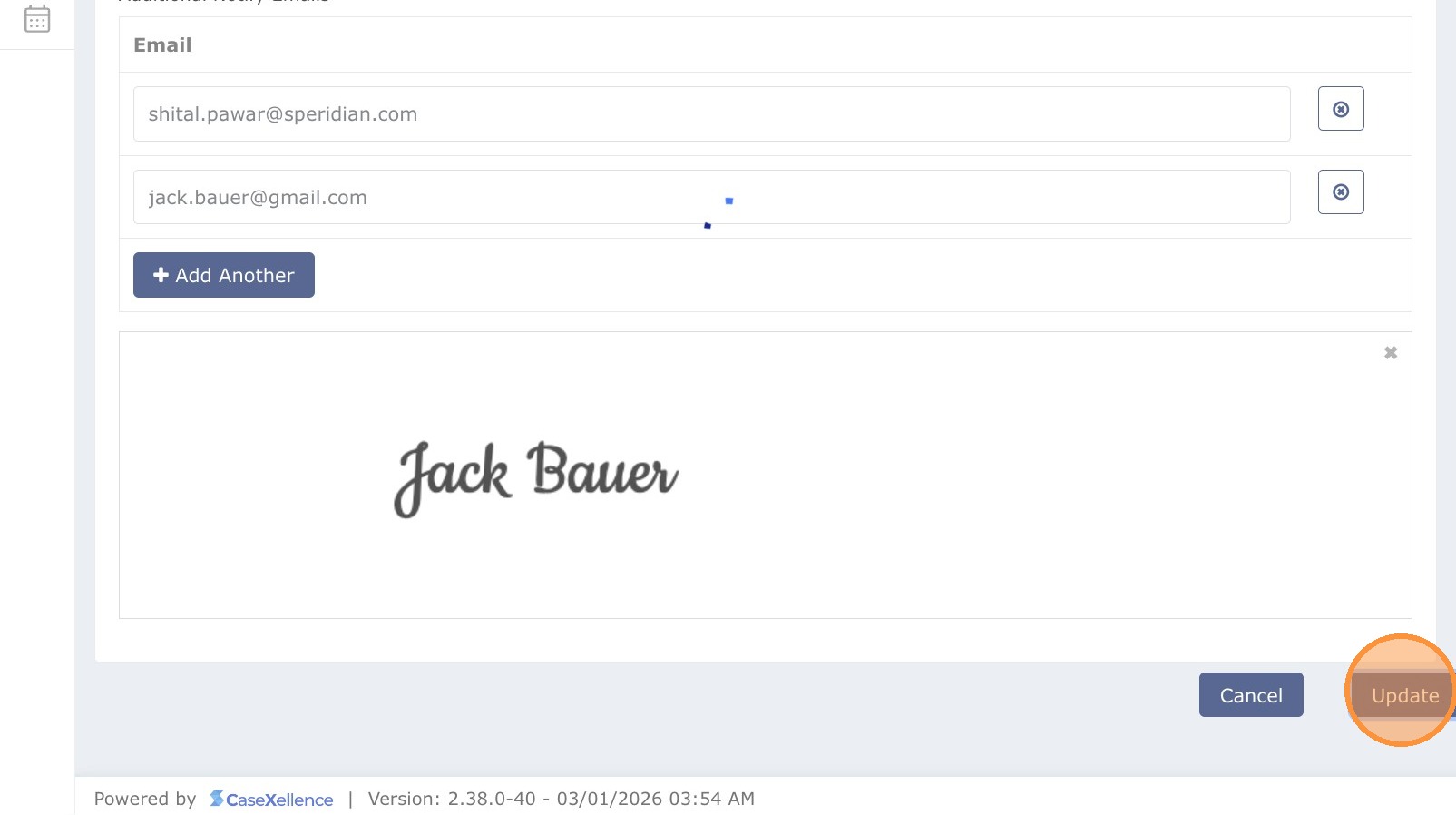
- Review the signature in the preview. If it does not look right, upload it again or redraw it.
- Click Update to save your profile with the new signature.
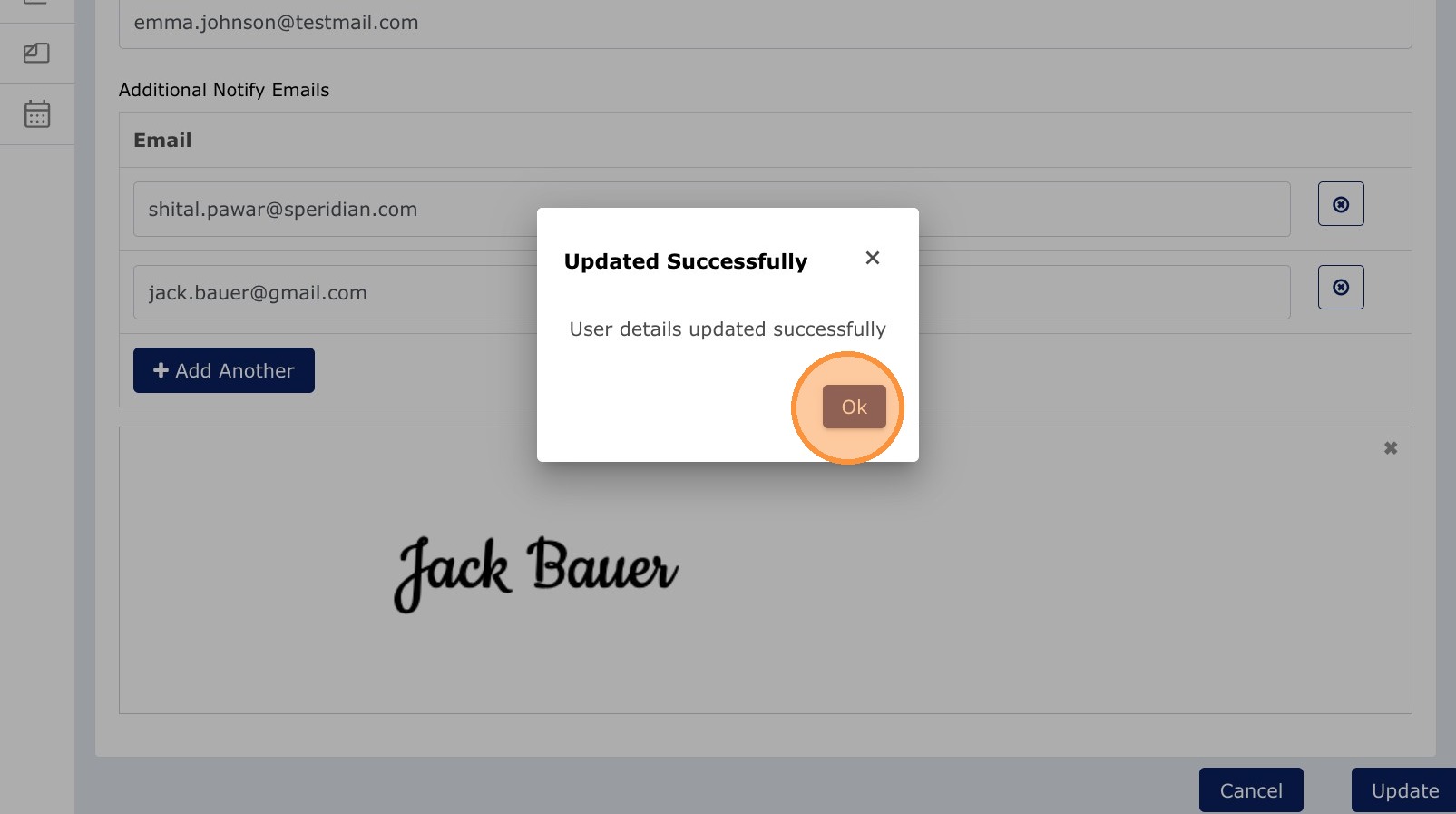
- Click OK in the confirmation prompt.
Note: Your signature is applied automatically when you generate a filing document. You can change it at any time in My Profile. Staff can add their email addresses to Additional Notify Emails to receive case notifications. They do not need their own ECF account if they only need to receive notifications.
See also: Dashboard Views and Menu Items · User Registration — Attorney or Representative
Portions of this user guide were produced with assistance from artificial intelligence tools; all content was reviewed for accuracy before publication.